.png)
Images
Some tips and best practices when it comes to uploading images to the website.
File Types
JPG: Default file type, use when you have a full image that takes up the entire frame.
PNG: Only use for complex images that have transparent backgrounds
SVG: Use for design elements that are simple shapes/colors (for example a circle, logo, or icon should be svg)
Compress Your Image Files
After you've exported your image file, it's important to compress it so that it takes less bandwidth from the website. More bandwidth used = more $$ spent. Larger files also take longer to load and negatively impact the user's experience.
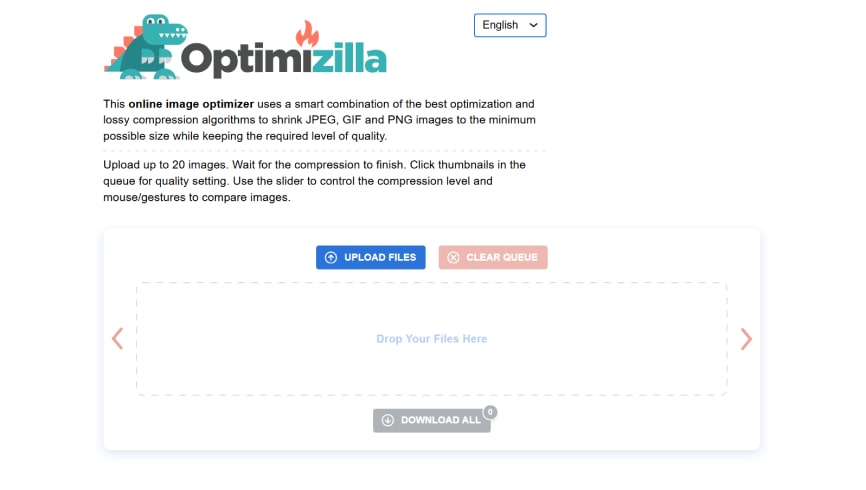
Upload your images to imagecompressor.com to minimize their size. The default settings are good but you may need to adjust it depending on the image you are uploading. Download the compressed image and upload those to the assets panel in Webflow.

Naming Your Files
Make sure you give your file's a descriptive name. If it's for a specific element it should have a specific name. For example, a photo of the Center for Media and Design could be named "cmd-campus". Images should have descriptive names instead of "image1.jpg" for example.
Set Alt Text
To meet WCAG 2.2 AA accessibility standards, make sure to set alt text for an image. You can do this by opening the asset panel, selecting the gear icon over an image, and writing the alt text. If it is strictly decorative (like a line, circle or shape) that has no context to the information on the page, you can set it as decorative.
