.png)
Quickstart
Follow this quick start guide to start building pages in Webflow.
Read Full Client-First QuickstartBest Practices
- Create a back up of the site before making changes Command + Shift + S (on Mac) or Control + Shift + S (on Windows). You can name it something like "Before changing "_______". This makes it easier to restore the website if something goes wrong.
- Test new features on the duplicated website. This protects the live website and allows you to break things without worry.
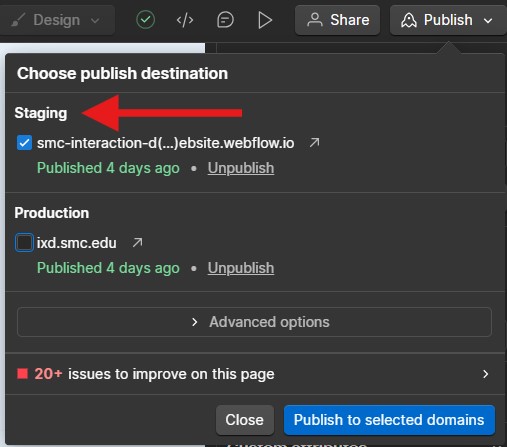
- When making changes, deploy to the staging site first and make sure that everything is working before publishing to the production site.
- Check responsiveness on each breakpoint. Make sure everything looks good and the layout doesn't break. Always make your main edits on the desktop base breakpoint, then move to the right - checking each layout.

- Google / YouTube are your friends! If you're unsure of how to do something, search for it on Google or YouTube. The Webflow community is huge and chances are that someone has had the same question before.
Creating a New Page
Create a new page by using the Base Page Structure Template under the "Static Page Templates" section in the navigator.

IxD Page Structure
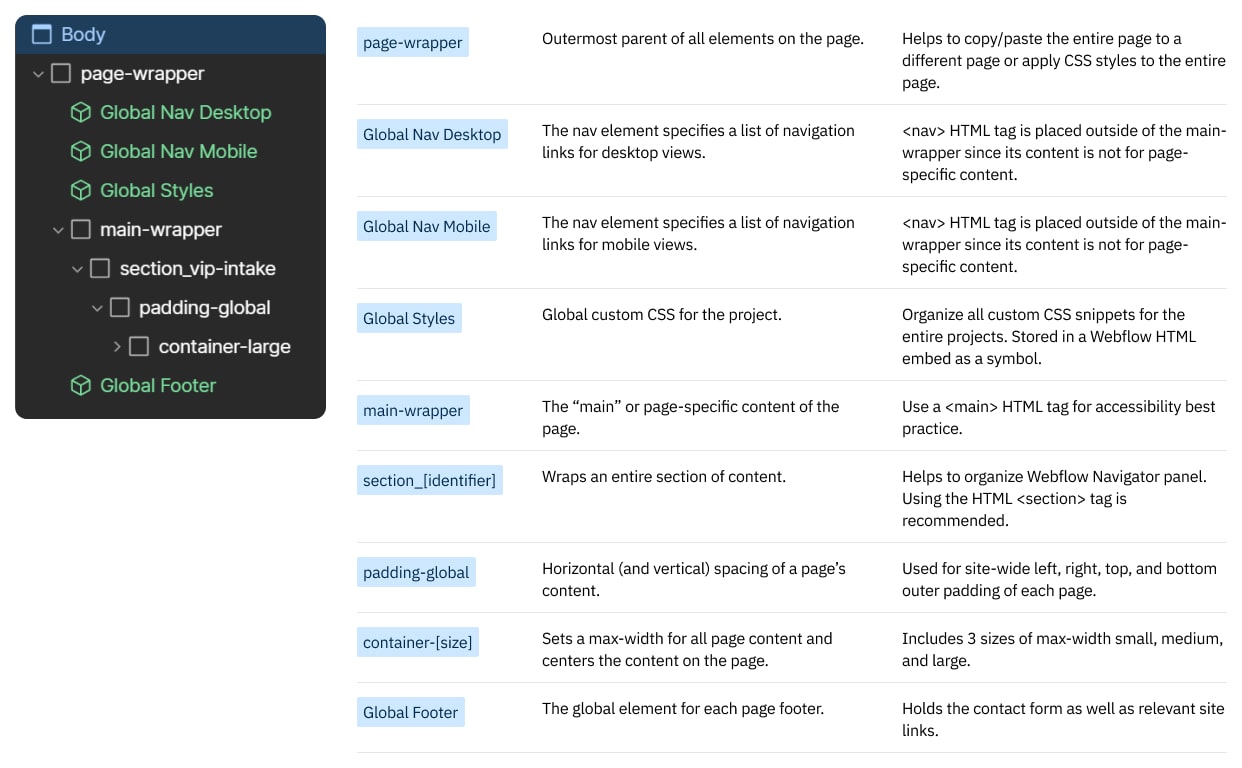
Each page will follow this div structure below. This helps keep everything organized across the entire project. This structure is a key element of the client-first framework, to read more about this structure visit the client first webpage.
Heading Page Hierarchy
Each page should have one H1 element, followed by H2 elements which are then broken into further H3 elements, and so on.
Headings help give us an idea of what the content following it is going to be about. Each page will have only one H1 element, this element describes the main content of the page. We'll take the homepage for example, "Design your future with a Bachelor’s Degree in Interaction Design from Santa Monica College" is the homepage's H1 element. The next heading "What is Interaction Design?" is the H2 element. Each page can have as many H2, H3, H4, H5, and H6 tags. Each subsequent tag should support the tag above it. For example, you have an H2 element that has 3 sub topics - so you create 3 x H3 heading elements. Each of those H3 topics is broken into 2 more sub topics - so you create 2 x H4 topics. The H4 topics support the H3 topics, while the H3 topics support the H2 topics, and the H2 topics support the H1 topic.
Global Styles Code Embed
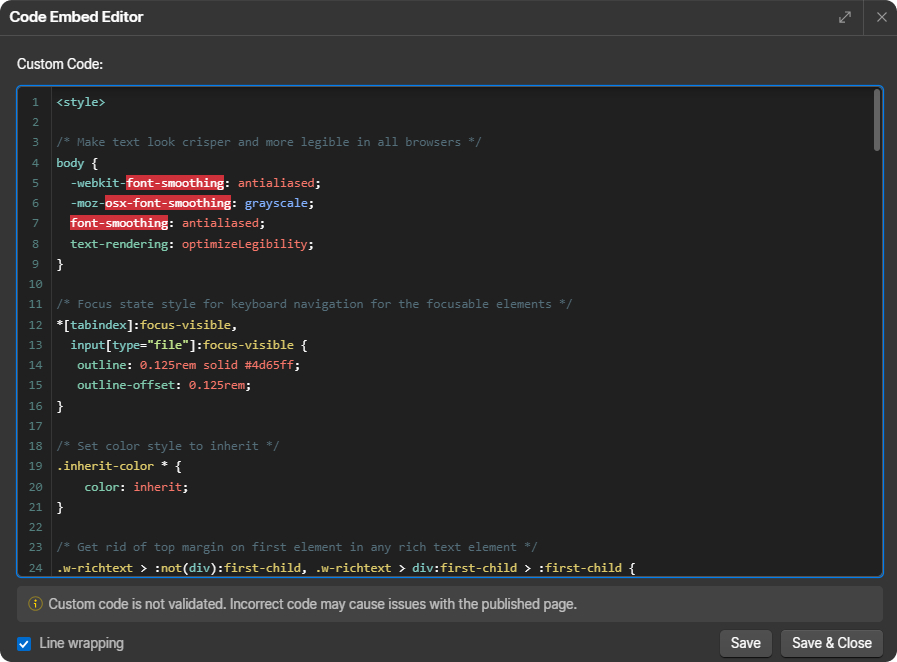
The "Global Styles" code embed adds CSS styling that is otherwise unavailable in Webflow. It also includes CSS elements that make using the design system easier.
Building Tips
If you have repeated elements that follow a similar layout, use the CMS. Watch this video for an intro and learn even more by completing the Webflow CMS course.